
Invoice from email is now live in Adfin. If your billing system sends invoices by email, Adfin can now pick them up, add a payment link and chase them until they're paid.
Until now, Adfin took invoices from Xero and QuickBooks, or from invoices you raised in Adfin. Plenty of businesses bill from somewhere else: Sage 50, Zoho Books, CCH Central, a job management tool like Uptick, or a practice management system. Those invoices still go out by email, so that's where Adfin now picks them up.
How it works
You get a private Adfin email address for your account. There are two ways to send invoices to it:
- Add the address as a Bcc in your billing system's invoice email template
- Set up a rule in Gmail or Outlook that forwards your outgoing invoice emails to it
Your customer gets the invoice exactly as they do today. Adfin gets a copy, reads the PDF and creates the invoice, with the customer, invoice number, amount and due date filled in and a payment link attached. From there, it's chased like any other invoice in Adfin.
You decide how it runs
There are three settings to choose when you set it up:
- Who sends the invoice: your accounting system, as it does now, or Adfin
- What your customer receives: your original PDF, or an Adfin invoice
- What happens when a new invoice arrives: Adfin waits for your approval before chasing starts, or starts straight away
If you'd like to check each invoice before anything goes out, choose to wait for approval. You can switch to sending automatically once you're comfortable with how it's working.
Only the invoices you expect
Adfin only accepts emails from senders you've approved. If you forward from Gmail or Outlook, that's your own sending domain. If your billing system sends on your behalf, as Zoho Books and Uptick do, you approve their sending address instead. The setup guide for each system tells you which one to use.
Which systems it works with
We've written step-by-step guides for Gmail, Outlook, CCH Central, Zoho Books, Sage 50 and Uptick. If your system isn't on that list, the same approach usually works, as long as it emails your invoices as PDF attachments.
Credit control without changing how you invoice
If you've held off automating credit control because your billing system doesn't connect to Adfin, this removes that step. You keep invoicing the way you do now, and Adfin sends the reminders and payment links in the background.
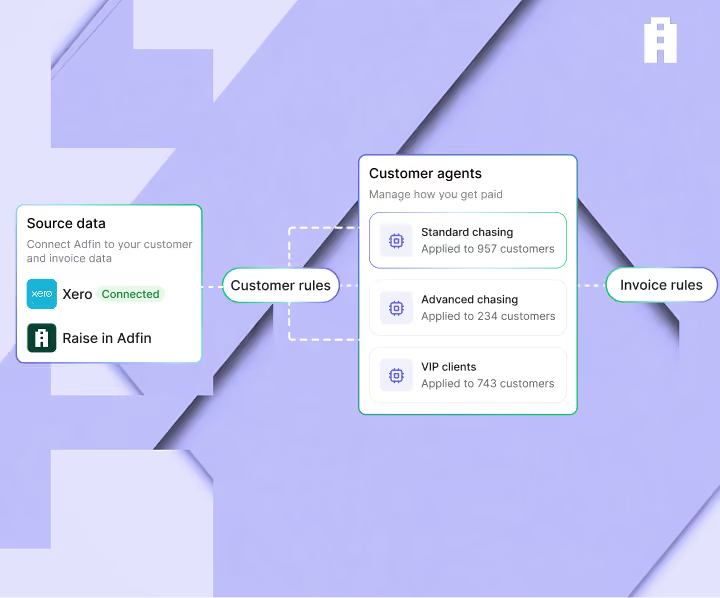
Invoices from email work with your collection agents, so you can start with credit control and add more when you're ready.
How to switch it on
It's live now. Set it up in Settings, under Invoice settings and then Invoice from email. Copy your address into your billing system or inbox rule, and choose the collection agent you want to follow your invoices up. The setup guides are in our help centre, and if you'd like to see how it would work with your billing, book a demo.